Getting Started with the Editor
How a page is structured (sections, and components within each section) and what each button on the toolbar does.
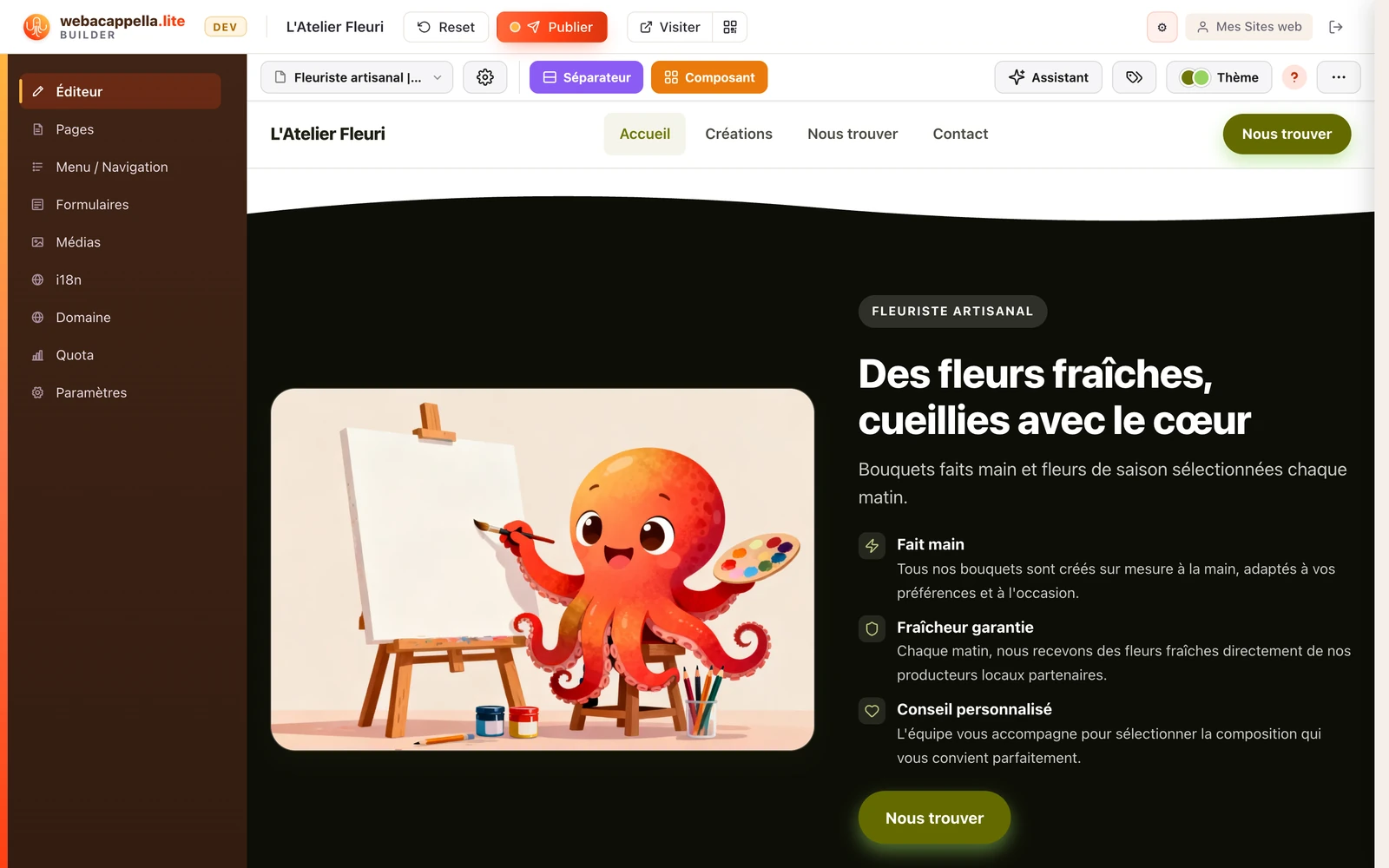
Sections and Components
A page is read from top to bottom as a series of sections: the large horizontal bands on your site. Each section has its own background (color, gradient, image), and moving from one to the next changes the overall feel. The Separator button creates a section, and the seam defines the junction between two sections: straight line, wave, curve, or bevel.
In each section, you stack components: banner, service list, gallery, form. These are what visitors see. Click on a component to edit, move, or delete it; add more using the Component button. See Editing a Component.
The toolbar

- Edit / Preview: Edit mode displays the editing tools; Preview mode shows the page exactly as your visitors will see it.
- Screen sizes: Check how your site looks on a computer, tablet, and phone. Your site adapts automatically.
- Undo / Redo: Every change can be undone, so feel free to experiment.
- AI Assistant: Describe what you want (add a page, rephrase some text…), and the assistant will take care of it.
- Theme: the colors, fonts, and shapes used throughout the site. See The Theme.